This article was written on 13 August 2026.
AI tools change fast. This piece reflects NotebookLM / Gemini Notebook Studio as of that date. Pair it with the source-pipeline article; if your pile is messy, none of the loops below will save you.
Language reality check: the web app is available in most countries Transipoyo readers live in. That does not mean every Studio format speaks your language. As of this writing, Explainer Video Overview supports a long list (Korean, Spanish, Portuguese, Indonesian, Hindi, Arabic, Vietnamese, French, German, Malay, Chinese, and others). Short and Cinematic video are English-only and 18+. Mongolian, among our languages, is often missing from Audio/Explainer lists — the notebook still works; generate those outputs in English (or another listed language) until it ships. If a tile is missing, skip it. Use chat, slides, or Audio Overview. We do not recommend faking your region.
Once sources are in, the product is a loop, not a one-click magician. You talk to the pile. You keep the useful turn. You turn that turn back into a source. Then you print something: slides, a podcast-like Audio Overview, flashcards on the phone, an Explainer video if your language is listed.
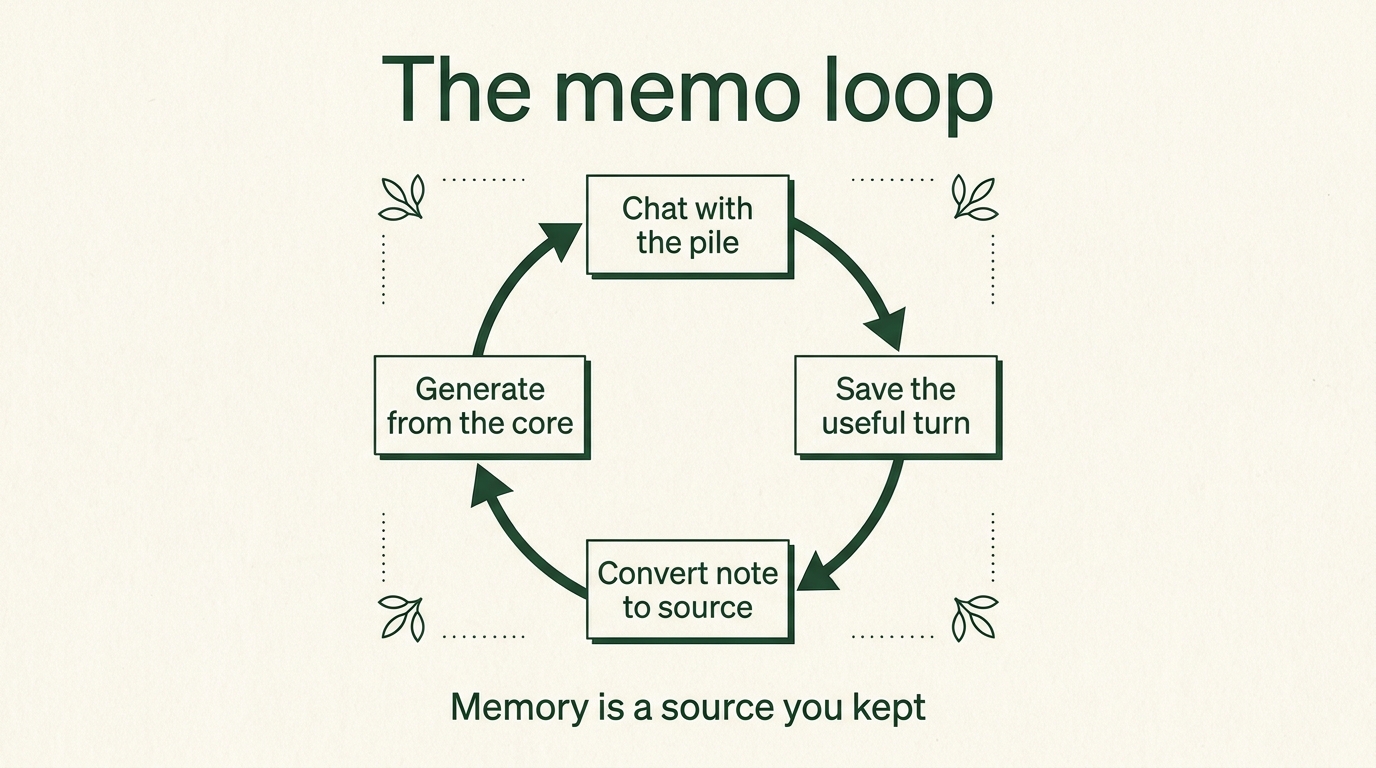
Chat → save as a note → convert the note to a source → generate. Same English diagram on every language page.
Labels are not folders
When a notebook grows past a handful of files, Google’s label tool (rolled out with the Gemini Notebook refresh) can tag sources by theme. One source can wear two labels. That matters at generate time: you can build a deck from “supply-chain only,” not from the entire pile. If auto-label misses a theme, add the label yourself and retag. After you add new sources, run label again. This is janitorial work. It is also how a 40-source notebook stays usable on a Thursday afternoon.
Custom chat, then keep the good turn
Chat settings let you change voice (formal colleague, blunt reviewer) and answer length. Longer is better when you are drafting; default is fine for a quick lookup. When a reply is actually good — a seven-day study map, a risk list, a meeting outline — save it as a note, then convert that note into a source. Pin it to the top. The next generate uses your own synthesis, not only the raw PDFs.
That loop is the closest thing this tool has to memory. Without it, you are renting a smart search box. With it, Monday’s argument becomes Tuesday’s source.
Studio: print from a clean pile
- Slides — do not tap Generate with every source checked. Select the pinned set or one label. Use the style controls if you have them; ask for a simple professional look, not a local cartoon mascot that will look dated in another country.
- Audio Overview — a spoken pass through the pile. Set output language first. If your language is missing, generate in English and treat it as a briefing you can skim at 1.5×.
- Explainer video — the multilingual video format. Prefer this over Short if you need Korean, Spanish, Hindi, and so on.
- Short / Cinematic video — English, adult accounts, and often a paid tier first. If Korean (or another) captions break, stop. That is a product gap, not a skill issue. Use Explainer or slides until the format catches up.
- Flashcards — useful on the phone app for phrases, definitions, or a meeting’s three claims. Generate from the pinned source, not from the junk drawer.
Three work recipes (method only)
A meeting recording
Drop the audio (there is a per-file size cap; a typical one- to two-hour meeting fits). Let it transcribe. Then search for the public context you are allowed to add — not confidential client files from the open web. Generate a one-page brief from the transcript plus those extras. You still edit. The notebook does not attend the meeting for you; it stops you from losing the thread.
A trip or a field visit
YouTube, a blog, and an official PDF each lie in different ways. Put all three in. Ask which places are mentioned most, and to mark a spot “unconfirmed” when the address never appears. Save that table as a source. Then ask for a two-day route. The loop matters more than the destination.
One photo, then a one-pager
An image can be a source. Describe the job (a menu board, a product one-pager), save the copy as a note, convert to source, then generate a slide. This is not design school. It is a way to stop a phone photo from dying in the camera roll.
When the slide cannot be edited
Notebook slides are still awkward to rewrite in place. A practical exit: in Gemini, attach the same notebook (same Google account), open Canvas, and rebuild the deck as something you can edit and export. Fonts may break on download; fix them in PowerPoint or Google Slides. This is a bridge, not a religion. If Canvas is missing in your account, export what you can and rewrite the three slides that matter.
What to do if your language is late
You can still curate sources, chat, pin, and make slides. Those are the job. Audio and video in your language are a convenience on top. English-first features are a reminder that AI products still ship from one centre and arrive unevenly. Using the method in your language — even when the podcast voice is English — is already the useful part.
Keep the pile honest. Print only from the pinned core. If a new Studio tile appears next month, it will still be a printer.